Installing on your Mac

Your Mac will warn you before opening RelayTune. Here's why, and how to get past it.

The first time you open RelayTune, macOS shows a scary-looking "cannot be opened" message. This isn't a bug, and it isn't RelayTune misbehaving — it's Apple's Gatekeeper, and it shows up on any Mac app that wasn't paid for through Apple's $99/year Developer Program.

The honest reason: RelayTune is a one-person project, sold as a one-time €29 purchase with no subscription. Apple's "notarization" — the thing that makes this warning disappear — isn't a one-time fee either: it requires an active $99/year Apple Developer membership, forever, for as long as anyone might still be downloading the app. Passing that cost on as a recurring fee didn't sit right for a product I sell as "buy once." So for now, RelayTune ships unsigned, and this page exists instead.

This is a genuinely common setup for small, independently-sold Mac apps — it's not specific to RelayTune, and it doesn't mean anything is wrong with your download.

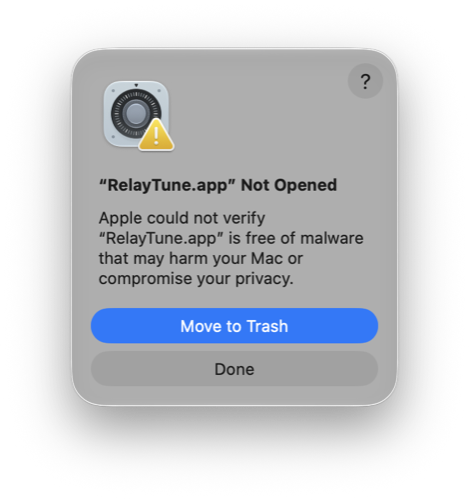
macOS dialog: RelayTune.app Not Opened, Apple could not verify it is free of malware
Step 1

Double-click RelayTune, see this, click "Done"

The first time you open the app from your Downloads folder, macOS blocks it outright and shows this. Click Done (not "Move to Trash").
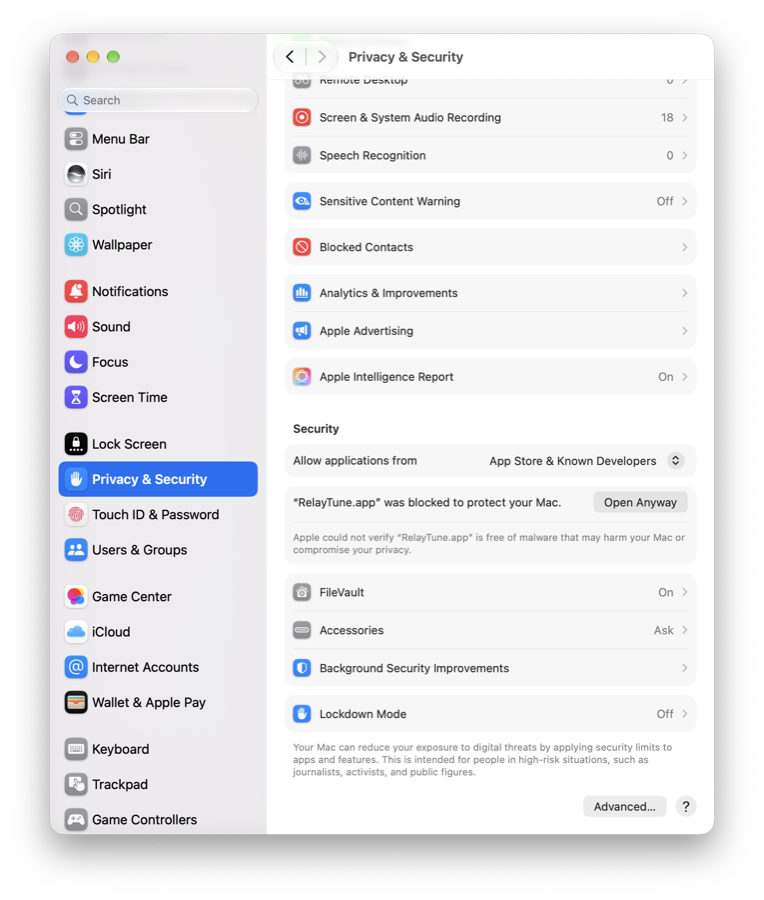
System Settings, Privacy and Security page, showing RelayTune.app was blocked to protect your Mac, with an Open Anyway button
Step 2

Open System Settings → Privacy & Security

Scroll down to the Security section. You'll see a line saying "RelayTune.app was blocked to protect your Mac" — click Open Anyway next to it.
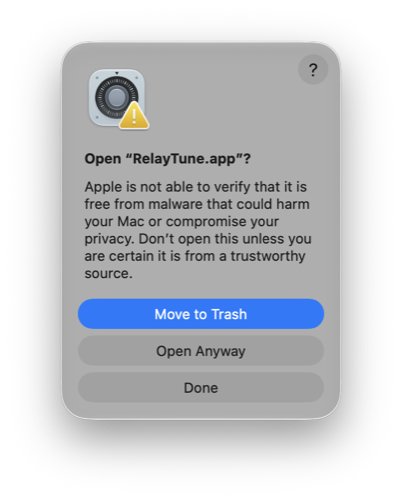
Confirmation dialog: Open RelayTune.app? with an Open Anyway button
Step 3

Confirm with "Open Anyway" again

macOS double-checks. Click Open Anyway one more time.
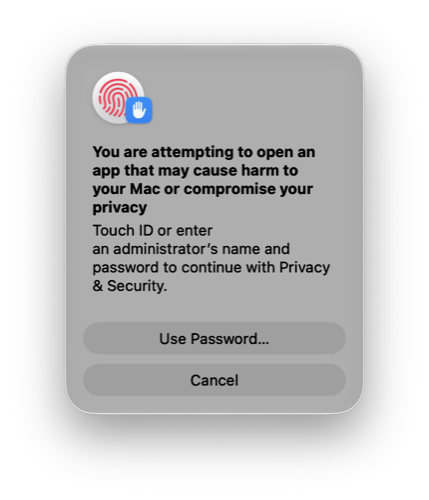
Touch ID or password prompt to confirm opening an app that may cause harm
Step 4

Confirm with Touch ID or your password

This is just macOS's standard admin check — the same prompt you'd get changing any system setting. RelayTune opens right after this.
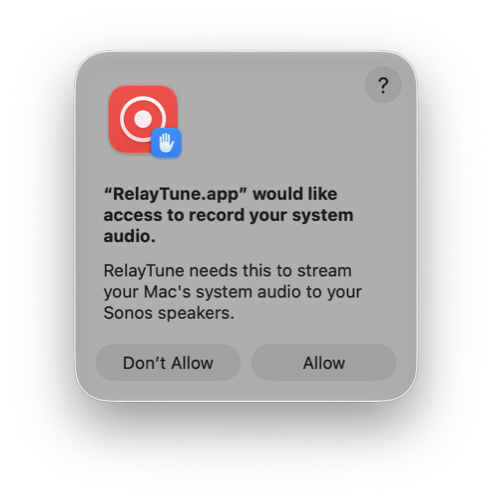
RelayTune would like access to record your system audio permission dialog
Step 5 — this one's normal

Allow system audio access

This prompt is unrelated to the warning above — it's RelayTune itself asking for the one real permission it needs, to capture your Mac's audio and send it to your Sonos speakers. Click Allow.

That's it — you only do this once. After this first launch, RelayTune opens normally every time, just like any other app.
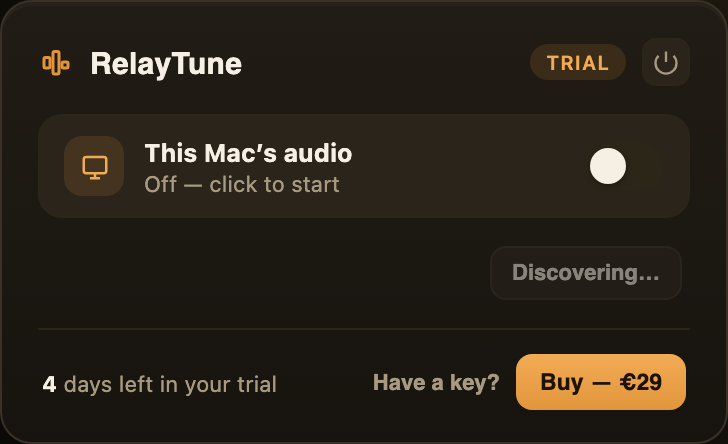
What you'll see next

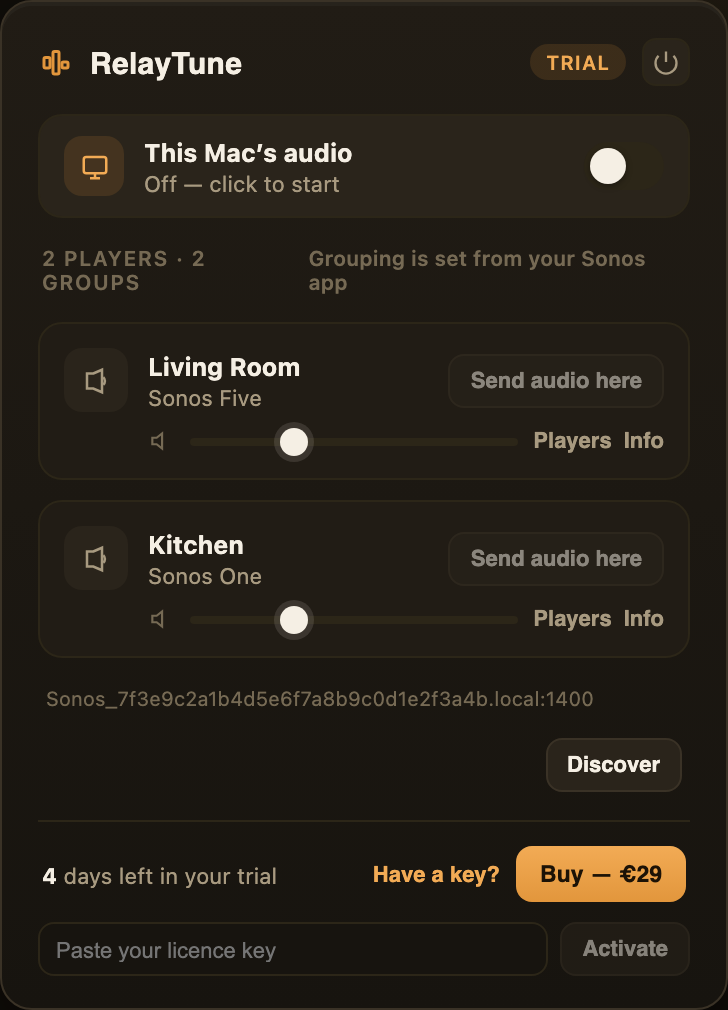
The app itself, on first open

Once you're past the steps above, RelayTune opens straight into this. No account, no setup wizard — just your speakers and your trial.

RelayTune app window showing Discovering... while it looks for Sonos speakers on your network
First, it looks for speakers

RelayTune finds your Sonos speakers automatically

No login, no pairing code — RelayTune scans your Wi‑Fi for every Sonos speaker and group it can see. This takes a second or two.

RelayTune app window with the license key field expanded, showing a Paste your licence key input and Activate button
Already bought a key?

Click "Have a key?" to activate it

Your 5-day trial starts automatically — no key needed to try it. Already purchased? Click Have a key? at the bottom, paste the key from your confirmation email, and click Activate.